Installing ACE (v3.6.x)
- Jon Tandy
- Former user (Deleted)
Deprecated
NOTE: These are old instructions for a previous version of ACE (3.6.x). For the latest instructions, see:
Download the latest ACE Editor software installation from http://redigate.elecsyscorp.com/software
Choose a version to download. There are two options: Online Install and Offline Install.
The Online Install version can be used if your configuration PC is connected to the Internet. This version will check for updates each time it runs, and you will be prompted when there is an update available.
The Offline Install version must be used if your configuration PC does not have access to the Internet. This version will not check for updates, and you are responsible for downloading and updating the application when an update becomes available.Uninstall Previous Versions
If you have a previous version of ACE installed on your machine, you may need to uninstall that version prior to installing the current version of ACE Editor.
- You can install ACE Editor version 3.6.x on the same machine as a previously installed ACE Editor version 3.5.x or earlier, if desired.
- If you are updating ACE Editor 3.6.x from a previous 3.6.x, but from a different installation location (different folder, or Online/Offline difference), you must uninstall the existing version first.
Uninstalling and reinstalling the ACE Editor will not delete your existing Working Folder (configuration directory), including configuration and template files with one exception: If you uninstall ACE Editor that is version 3.0 through 3.5.x, the "DefaultTemplate.xml" file will be removed during the uninstall and replaced with the reinstall. If you wish to retain your existing DefaultTemplate.xml, either rename or back-up this file before uninstalling the program.
Newer versions of ACE Editor can use the same Working Folder (configuration directory) as earlier versions.
(Offline Install only) – Click the Offline Install link on the RediGate software site, and download the .zip file. This will be stored into your Downloads folder.
Create a folder (such as "C:\Temp"), and extract the files from the .zip file into the folder. If you plan for multiple users to install ACE Editor in a shared working environment, you can extract the files to a common network folder accessible to all users.Temporary Install Location
Note: When performing the Offline Install to upgrade an already-installed ACE Editor, you must use the same folder to install the update from which it was installed originally. If not, you will get an error and have to uninstall the old version and reinstall the new.
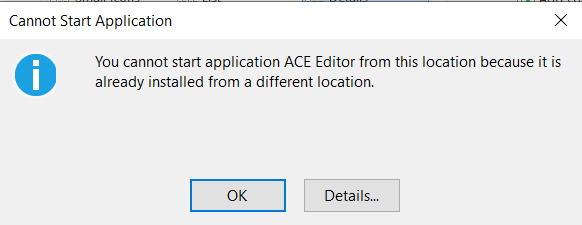

- (Offline Install only) – Run the setup or setup.exe application to install the ACE Editor.
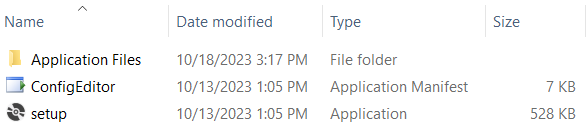

- (Online Install only) – Click the Online Install link on the RediGate software site. This will download the ConfigEditor.application file and store it to your Downloads folder.
Open the ConfigEditor.application file. Prompts may differ depending on your Web browser – a typical example is shown below.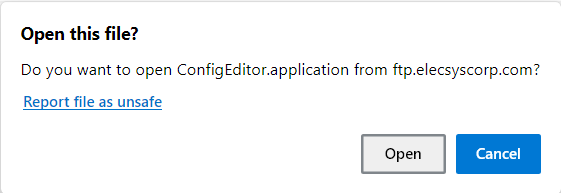
- Follow the prompts to continue the installation.
Click the Install button.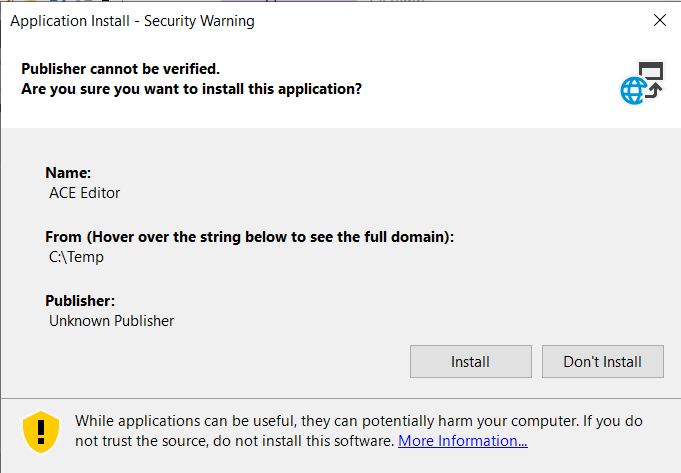
Click "More info" to reveal the app information, and click the "Run anyway" button.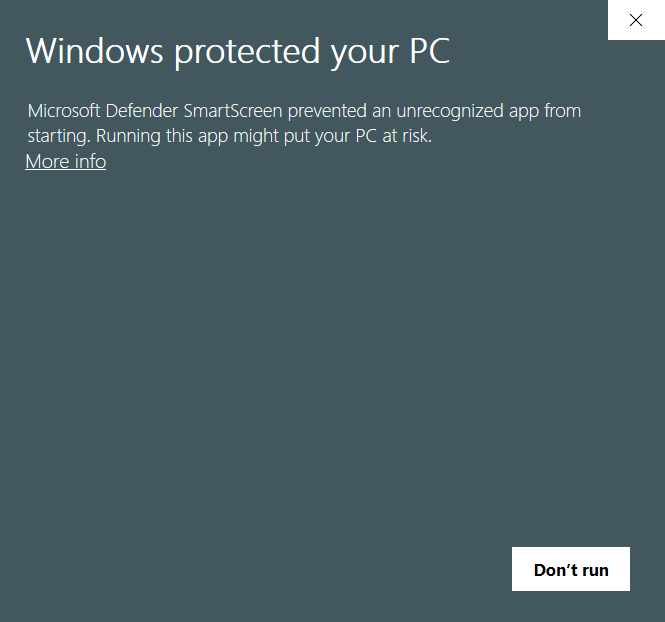
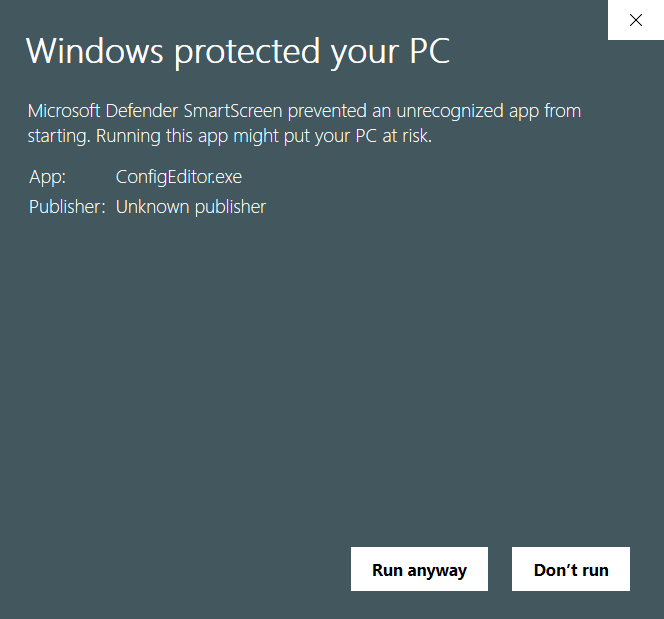
- The ACE Editor will open immediately, if the installation was successful.
Whenever ACE Editor is opened, it will install the following files, if they don't already exist:
* Program icons and TeraTerm application into a private user application directory (such as %LOCALAPPDATA%\Elecsys\ACE).
* DefaultTemplate.xml file into the current Working Folder (configuration directory, such as Documents\Elecsys\ACE).
To install the program icons when prompted, select Icons or Icons.zip, and click Open.
OldIcons.zip is a set of older icons used by legacy customers.
(Source install directory for the icons is, for example, %LOCALAPPDATA%\Apps\2.0\0K3CR1Y1.46N\W2JLTGBR.D31\conf..tion_ea1bfc80a8729bec_0003.0006_710bfa536f49dce9).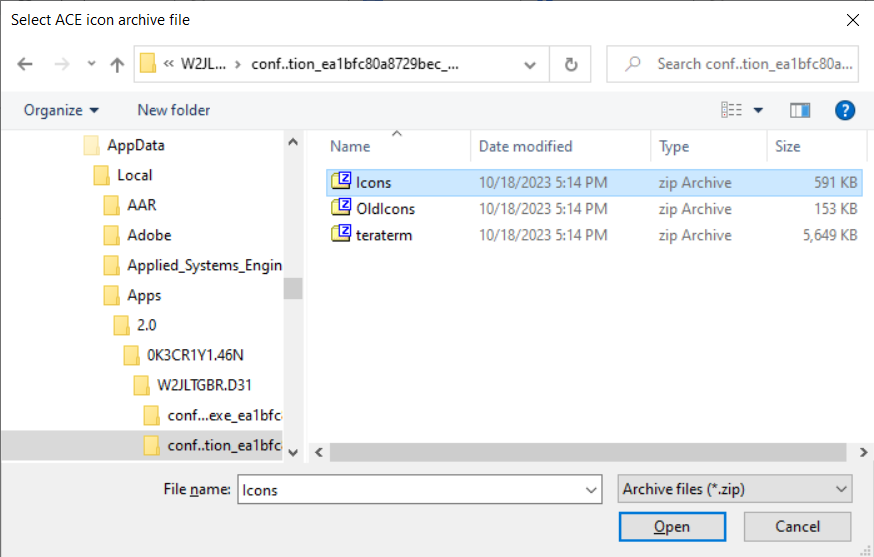
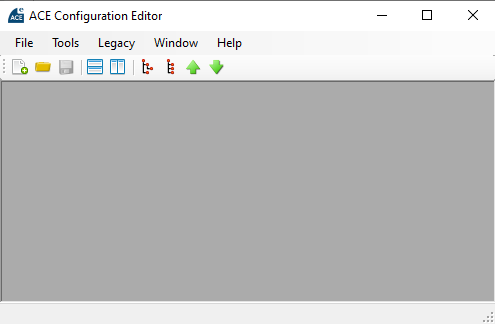
- The ACE Editor will open to a blank screen. Now you are ready to open, create, or modify your XML configuration files.